> For the complete documentation index, see [llms.txt](https://docs.scaleconnect.com.au/llms.txt). Markdown versions of documentation pages are available by appending `.md` to page URLs; this page is available as [Markdown](https://docs.scaleconnect.com.au/scaleconnect-docs/scaleai/broker-brain/ai-workflows.md).
# AI Workflows
AI Workflows are automated sequences that monitor your client data for trigger conditions and take action when thresholds are reached. Instead of manually checking every client's LVR, equity position, and goal progress, you define the rules once and ScaleAI runs them continuously across your book.
Each workflow connects a **trigger condition** (something changes in a client's data) to an **action** (generate a review, suggest a meeting, send a notification). Workflows can also chain together — a review generates a recommendation, which triggers a meeting, which produces a transcript that feeds the next review.
***
## What Workflows Are
A workflow is a configurable automation rule with two components:
1. **Trigger** — a condition that ScaleAI monitors across your client book (e.g. LVR drops below 80%)
2. **Action** — what happens when the trigger fires (e.g. book a meeting, generate a review, send a notification)
Workflows run continuously in the background. ScaleAI evaluates each client's data against your configured triggers and acts when conditions are met. You don't need to check — the system comes to you.
Think of workflows as your automated practice management layer. They encode the rules you'd follow if you had time to review every client every day — and then execute them at scale.
{% hint style="info" %}
Workflows are different from one-off Ask AI queries or Broker Brain conversations. Those are reactive — you ask a question and get an answer. Workflows are proactive — they run without you initiating anything, and they act when conditions change.
{% endhint %}
***
## Available Workflow Types
ScaleConnect supports several workflow types, each designed for a specific use case.
### Scheduling Bot
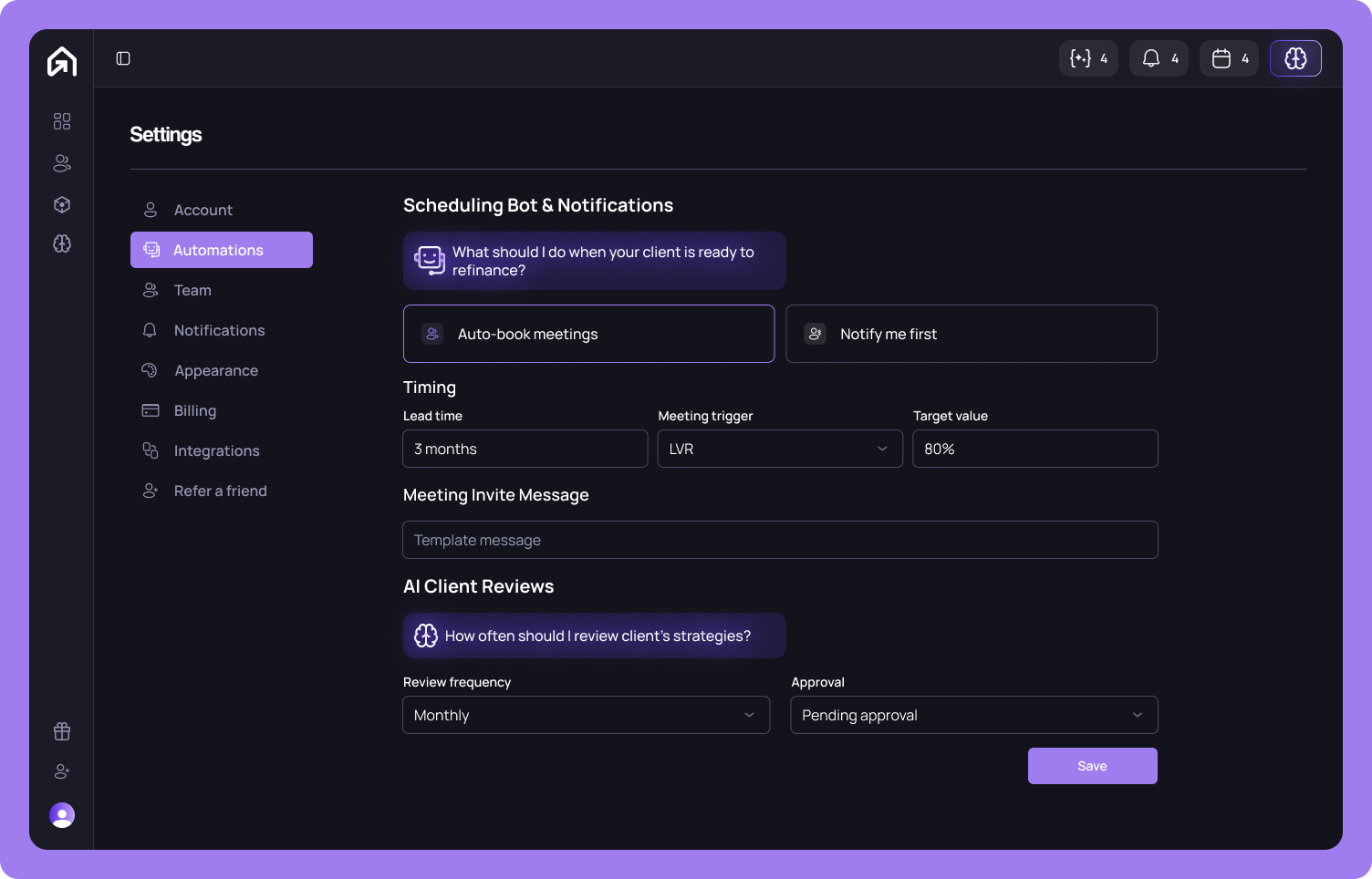
The Scheduling Bot monitors client readiness signals and triggers the meeting scheduling flow when a client reaches a configured threshold. When it fires, the [Calendar Agent](/scaleconnect-docs/scaleai/ai-assistant/calendar-agent.md) takes over — checking your availability, proposing times to the client, and booking the meeting.
| Setting | What it controls |
| ------------------- | --------------------------------------------------------- |
| **Action mode** | Auto-book the meeting or notify you first |
| **Meeting trigger** | The metric to watch — LVR, Equity, or Goals |
| **Target value** | The threshold that fires the trigger (e.g. LVR below 80%) |
| **Lead time** | How far ahead of a key date to act (1–12 months) |
The Scheduling Bot is ideal for proactive client engagement. Set it to monitor LVR, and when a client's equity position improves enough to unlock new opportunities, the bot initiates a conversation without you lifting a finger.

### AI Client Reviews
The review workflow generates periodic [AI Reviews](/scaleconnect-docs/scaleai/ai-assistant/ai-reviews.md) on a schedule you define. Each review cycle, ScaleAI analyses the client's portfolio and produces a structured assessment that either sends automatically or queues for your approval.
| Setting | What it controls |
| ----------------- | -------------------------------------------------------------------------------------------- |
| **Frequency** | How often reviews are generated — Monthly, Bi-Monthly, Quarterly, Semi-Annually, or Annually |
| **Approval mode** | Auto-approve, Pending approval, or Manual review |
| **Client type** | First Home Buyer, Existing Home Owner, Investor, or Downsizer — shapes the analysis focus |
| **Sections** | Toggle individual review sections on or off |
See [AI Reviews](/scaleconnect-docs/scaleai/ai-assistant/ai-reviews.md) for full details on review configuration and the review queue.
### Review → Meeting chain
This isn't a separate workflow type — it's a natural chain that forms when reviews and the Scheduling Bot are both active. When an AI Review identifies a need for a meeting (e.g. "Client should discuss refinancing options"), the review card includes a **Book Meeting** button that triggers the Calendar Agent.
The chain: **Review fires → identifies action needed → recommends meeting → Calendar Agent books → meeting happens →** [**transcript captured**](https://github.com/scaleapp-au/scaleconnect-docs/blob/main/scaleai/transcription.md) **→ notes feed next review**.
### Notification workflows
Notification workflows alert you when a client's data crosses a threshold you care about, without automatically booking a meeting or generating a review. Use these for monitoring signals that need your judgement before action.
Examples:
* Client's LVR drops below 70% — potential for better rates
* Available equity exceeds $200,000 — could support a new purchase
* Fixed rate expires in 90 days — refinance conversation needed
* Client reaches 80% of their savings goal — almost ready to buy
***
## How to Configure Workflows
Workflow settings are available in three places, depending on the scope you need.
### Global settings
1. Open **Settings** from the sidebar.
2. Navigate to **Automations**.
3. Configure the **Scheduling Bot** and **AI Client Reviews** sections with your default preferences.
Global settings apply to every client who doesn't have per-client overrides.
### Per-client settings
1. Open the client in the **Client Manager**.
2. Navigate to the **AI Assistant** tab.
3. Click the settings icons for **Scheduling Bot Settings** or **Review Template Settings**.
4. Configure the trigger, action mode, frequency, and other parameters for this specific client.
Per-client settings always override your global defaults. Use them when a client's situation requires different monitoring thresholds or review cadence.

### During the Add Client flow
When you add a new client through the [Add Client](https://github.com/scaleapp-au/scaleconnect-docs/blob/main/scaleai/add-your-clients.md) flow, the final step — **AI Automations** — lets you configure both the Scheduling Bot and AI Review settings before the client is created. The onboarding flow also sets sensible defaults based on the client type you select.
***
## Trigger Conditions and Actions
Every workflow starts with a trigger — a condition that ScaleAI evaluates against each client's data. When the condition is met, the configured action fires.
### LVR trigger
Fires when a client's Loan-to-Value Ratio crosses a target threshold.
| Parameter | Example |
| ------------------- | ------------------------------------------------------------------------------- |
| **Direction** | Below (e.g. LVR drops below 80%) |
| **Target value** | 80% |
| **What it signals** | Client may no longer need LMI, better rates available, equity could be released |
This is the most commonly used trigger. An LVR below 80% is a significant milestone — it unlocks better interest rates, removes Lenders Mortgage Insurance requirements, and often signals that the client has enough equity to consider their next property.
### Equity trigger
Fires when a client's available equity exceeds a dollar or percentage threshold.
| Parameter | Example |
| ------------------- | ------------------------------------------------------------------------------- |
| **Target value** | $200,000 or 30% of portfolio value |
| **What it signals** | Client has equity available for a new purchase, renovation, or debt restructure |
Use equity triggers for clients in growth mode — investors building a portfolio or home owners planning an upgrade.
### Goal trigger
Fires when a client reaches a milestone percentage of a configured goal.
| Parameter | Example |
| ------------------- | ------------------------------------------------------------------------------ |
| **Target value** | 80% completion |
| **What it signals** | Client is close to achieving their goal (deposit saved, debt target met, etc.) |
Goal triggers are useful for First Home Buyers approaching their deposit target or investors closing in on a portfolio size objective.
### Lead time
Lead time adds a buffer to time-based triggers, so the system acts before a key date arrives rather than on the day itself.
| Lead time | Use case |
| ------------- | ---------------------------------------------------------- |
| **1 month** | Last-minute check before a fixed rate expires |
| **3 months** | Standard lead time for refinance conversations |
| **6 months** | Early engagement for clients approaching a major milestone |
| **12 months** | Long-range planning for clients with distant targets |
Set lead time based on how much preparation the action requires. A refinance needs 2–3 months of lead time to compare options, submit applications, and settle. A simple review conversation might only need 1 month.
### Actions
When a trigger fires, one of these actions is taken:
| Action | What happens |
| --------------------- | ---------------------------------------------------------------------------------------------------------------------------------- |
| **Auto-book meeting** | The [Calendar Agent](/scaleconnect-docs/scaleai/ai-assistant/calendar-agent.md) initiates the scheduling flow with the client |
| **Notify you** | A notification appears in your ScaleConnect dashboard — you decide the next step |
| **Generate review** | ScaleAI produces an [AI Review](/scaleconnect-docs/scaleai/ai-assistant/ai-reviews.md) for the client outside the regular schedule |
| **Send message** | An automated message is sent to the client through their ScaleApp chat |
***
## How Workflows Chain Together
The real power of workflows emerges when they work together. Each workflow fires independently based on its own conditions, but their outputs feed into each other to create end-to-end automation.
### The full chain
Here's a complete example of how workflows chain across a client lifecycle:
1. **AI Review fires** — The quarterly review for an investor client is generated on schedule.
2. **Review identifies an expiring fixed rate** — The analysis flags that the client's investment property loan has a fixed rate expiring in 4 months.
3. **Review recommends refinancing** — The next steps section includes: "\[BROKER] Discuss refinancing options before fixed rate expires in July."
4. **You send the review** — The client receives the review in their ScaleApp chat.
5. **Scheduling Bot picks up the LVR trigger** — The client's LVR has been below 80% for months, and the lead time window is now active.
6. **Calendar Agent books a meeting** — The agent proposes times to the client, who confirms. A Google Calendar event is created.
7. **Meeting happens** — You discuss refinancing options with the client over Google Meet.
8. **Transcript is captured** — [Granola](https://github.com/scaleapp-au/scaleconnect-docs/blob/main/scaleai/granola.md) records the meeting and sends the transcript to ScaleConnect.
9. **Notes are processed** — ScaleAI extracts key points, decisions, and action items from the transcript. See [Transcription](https://github.com/scaleapp-au/scaleconnect-docs/blob/main/scaleai/transcription.md).
10. **Next review cycle** — The next quarterly review references the meeting notes, tracks progress on the refinancing action item, and updates the client's trajectory.
### Approval gates
Each step in the chain can run automatically or pause for your approval:
* Reviews can auto-send or queue for manual review
* The Scheduling Bot can auto-book or notify you first
* Messages can send immediately or wait for your sign-off
Configure the approval level based on your comfort with automation. Start with manual oversight and move toward auto as you build confidence in the AI's output.
### Independent firing
Workflows fire independently based on their own conditions. The Scheduling Bot doesn't wait for a review to recommend a meeting — if the LVR trigger is met, it acts. Similarly, reviews generate on their own schedule regardless of whether the Scheduling Bot has fired. When both fire for the same client around the same time, the result is a natural convergence of insights and actions.
{% hint style="info" %}
Start with simple workflows — a quarterly review and a Scheduling Bot monitoring LVR at 80%. As you see the pattern work, add more triggers and reduce the approval gates. The system is designed to scale from conservative to fully automated at your pace.
{% endhint %}
***
Can I have multiple workflows for the same client?
Yes. A client can have both a review schedule and a Scheduling Bot trigger active simultaneously. They operate independently — the review generates on its cadence, and the Scheduling Bot monitors its trigger separately.
What happens if a workflow fires but I've already handled the situation?
Workflows are stateless — they fire when conditions are met, regardless of whether you've already taken action. If a Scheduling Bot triggers but you've already booked a meeting with the client manually, you can dismiss the notification or let the auto-book create a second event (which you'd then cancel). Over time, using the workflow system consistently avoids this overlap.
Can I disable workflows for a specific client?
Yes. Open the client's detail page, go to the AI Assistant tab, and edit the Scheduling Bot or Review settings. Set the review to Manual with an annual frequency, and switch the Scheduling Bot to Notify mode with a high target value to effectively disable automatic triggers.
Do workflows run in real time?
Workflows evaluate client data on a regular cycle, not in real time. Changes to property values, loan balances, or cashflows are picked up at the next evaluation. For most triggers, this means a delay of hours, not days. Scheduled reviews fire on their configured cadence (monthly, quarterly, etc.).
---
# Agent Instructions
This documentation is published with GitBook. GitBook is the documentation platform designed so that both humans and AI agents can read, navigate, and reason over technical content effectively. Learn more at gitbook.com.
## Querying This Documentation
If you need additional information that is not directly available in this page, you can query the documentation by asking a question.
Perform an HTTP GET request on the following URL with the `ask` and `goal` query parameters:
```
GET https://docs.scaleconnect.com.au/scaleconnect-docs/scaleai/broker-brain/ai-workflows.md?ask=&goal=
```
`ask` is the immediate question: it should be specific, self-contained, and written in natural language.
`goal` is what the user is ultimately trying to achieve, the reason they need the answer. Sharing it helps GitBook give you a better, more relevant answer. A goal is most helpful when it describes the outcome the user wants rather than restating the question. For example, with `ask=how do I create an API token`, a goal like `automate deployments from our CI pipeline` lets GitBook tailor the answer to that use case.
The response will contain a direct answer to the question and relevant excerpts and sources from the documentation.
Use this mechanism when the answer is not explicitly present in the current page, you need clarification or additional context, or you want to retrieve related documentation sections.