> For the complete documentation index, see [llms.txt](https://docs.scaleconnect.com.au/llms.txt). Markdown versions of documentation pages are available by appending `.md` to page URLs; this page is available as [Markdown](https://docs.scaleconnect.com.au/scaleconnect-docs/workspace/settings.md).
# Settings
Settings controls your account, team, automations, notifications, billing, and calendar connection. Open it from the sidebar under **Workspace → Settings**, or navigate directly to `/dashboard/settings`.
Each section is accessible from the left-hand settings sidebar. You can deep-link to a specific section using a URL parameter — e.g. `/dashboard/settings?tab=integrations`.
***
## Account
Your broker profile — the details shown to your team and used across the platform.
Edit your **first name**, **last name**, **email**, **phone**, **account type**, **trading name**, and **aggregator**. Click **Edit Profile** to make changes, then save.
**Profile photo** — click **Change Photo** to upload an image. Your photo appears on your profile card, in team views, and on any connected client's ScaleApp mobile view.
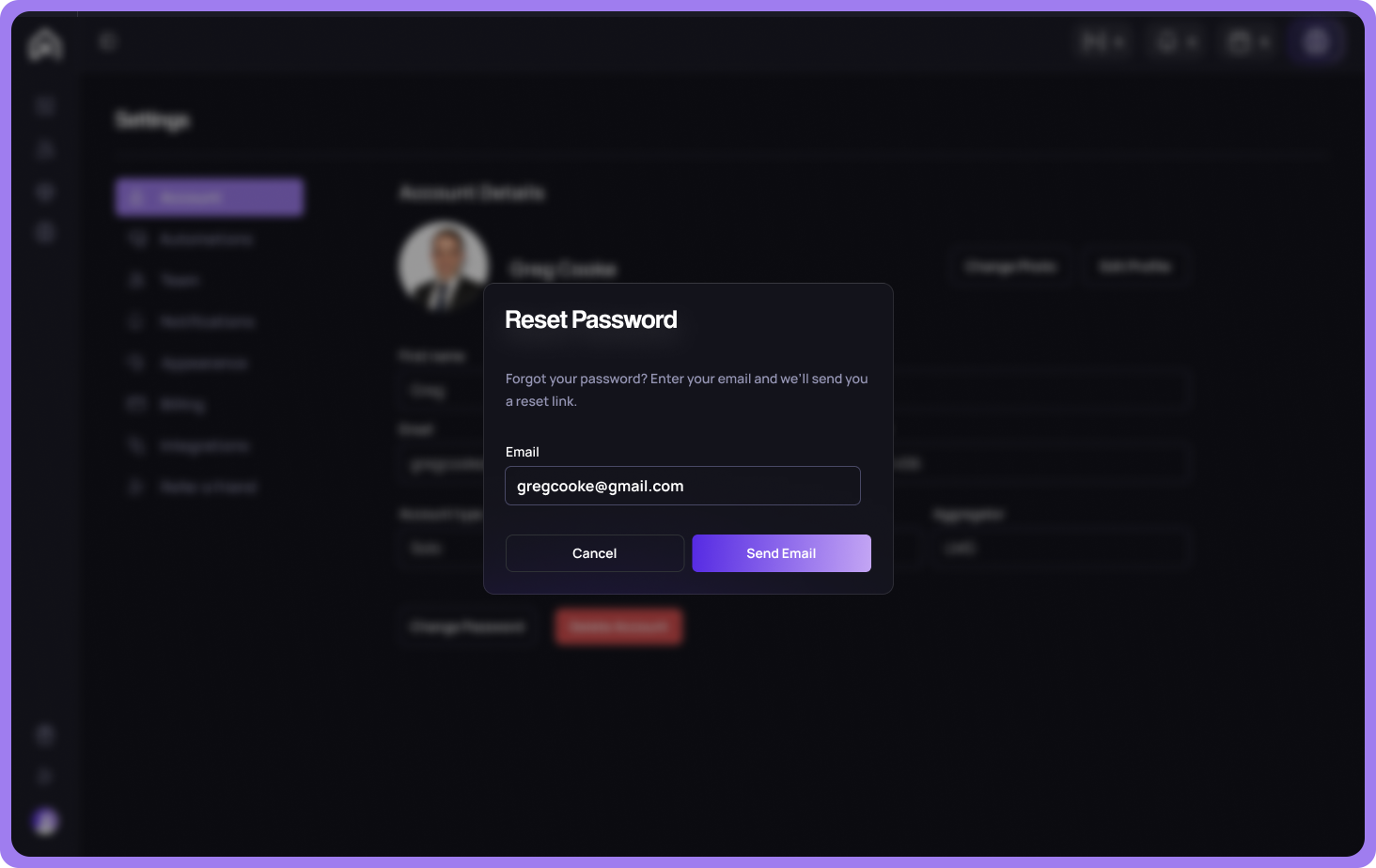
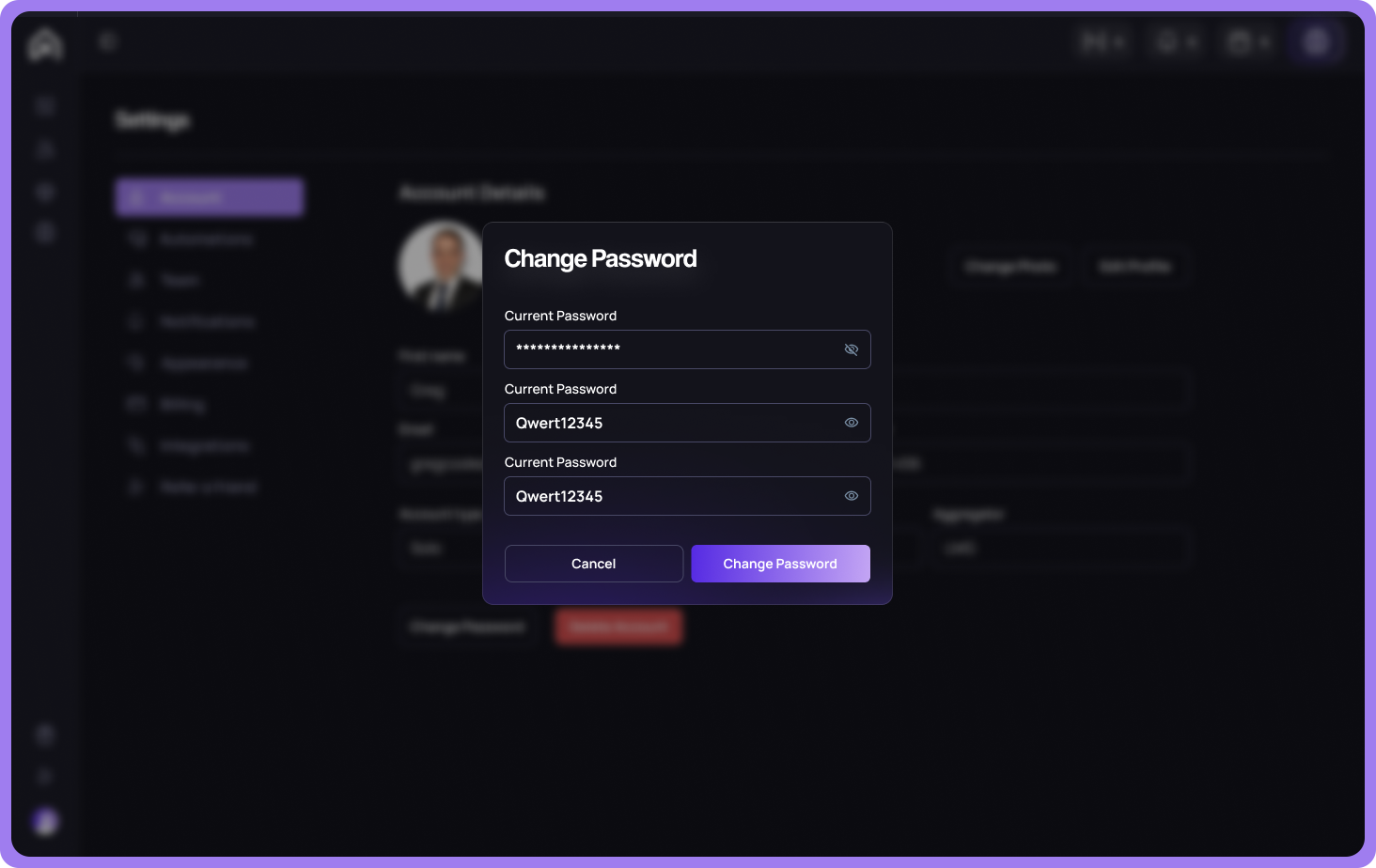
**Change password** — opens a modal to set a new password. Confirm the new password before saving.
**Delete account** — permanently removes your account and all associated data. You must type "Delete" to confirm. This cannot be undone.
{% hint style="warning" %}
Deleting your account removes your profile, client associations, and strategy data. If you're the team owner, transfer ownership before deleting.
{% endhint %}
***
## Automations
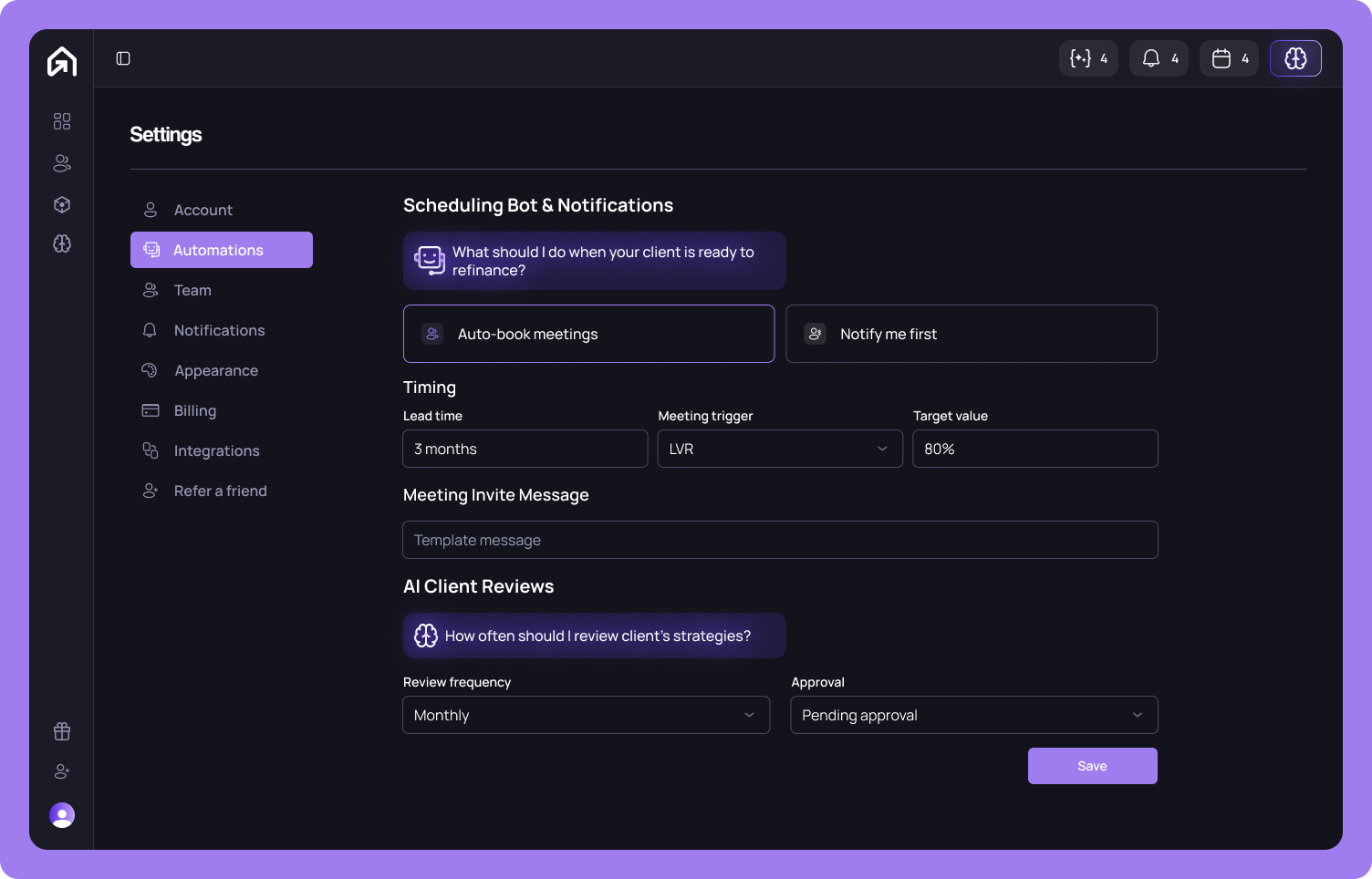
Configure how ScaleAI acts on your behalf — scheduling meetings and reviewing clients.
### Scheduling Bot
Set what happens when a client crosses a readiness threshold. Choose whether the AI should **auto-book meetings** into your calendar or **notify you first** for approval. Set the **lead time** (1–12 months ahead of the trigger), the **metric** that fires it (LVR, Equity, or Goals), the **target value** (e.g. 80%), and a **meeting invite message** to include in the calendar invite sent to the client.
### AI Client Reviews
Set how often ScaleAI reviews your clients' strategies — **Monthly**, **Bi-Monthly**, **Quarterly**, **Semi-Annually**, or **Annually**. Choose an approval mode: **Auto approve** publishes reviews immediately, **Pending approval** queues them for you, and **Manual review** requires you to trigger each one.
{% hint style="info" %}
These are your **default** settings for all new Clients. You can override them per client from the client's detail page.
{% endhint %}
Click **Save** to apply. Automations don't auto-save.
***
## Team
Invite members by entering one or more email addresses (comma-separated) and clicking **Invite**. Each person gets an email with a link to join your workspace.
Members appear in a list showing their name, email, role, and whether their invite is still pending. Three roles are available: **Owner** (full access including billing — one per workspace), **Admin** (can manage clients, strategies, settings, and invite members), and **Member** (can manage their own clients and strategies only). Change a member's role using the dropdown next to their name.
You can **resend** a pending invite, **cancel** it before it's accepted, or **remove** an active member. Destructive actions require confirmation.
***
## Notifications
Choose which notifications you receive and how.
Toggle **push notifications** and **email notifications** on or off independently. Then choose which topics trigger alerts: **client milestones** (LVR targets, equity thresholds, goals reached), **calendar events** (meetings, scheduling confirmations), **client messages** (new messages via ScaleApp), and **client reviews** (when an AI review is ready).
Enable **use different settings for mobile devices** if you want separate preferences on your phone.
Click **Update notifications** to save.
***
## Billing
View your subscription status, manage payment, and track AI credit usage.
If you haven't subscribed, you'll see the **ScaleConnect Pro** plan — $1 per month per client with a 3-month free trial. Click **Start Free Trial** to begin via Stripe Checkout.
Once subscribed, the billing section shows your plan status (Active, Free Trial, Past Due, or Cancelled), team member count, billing cycle, renewal date, and plan cost. A **client usage** bar tracks how many clients you've added against your limit. Click **Manage billing** to open the Stripe customer portal for payment method and billing address changes.
**AI credits** — a usage breakdown shows credits consumed by Client Reviews, Meeting Scheduler, Broker Brain, and AI Notetaker. Purchase additional credits ($50 per 10,000) or add the Enterprise add-on ($50 per member per month) for higher limits.
***
## Calendar
Connect your Google Calendar to sync meetings both ways. Click **Connect** to authorise via Google OAuth. Once connected, ScaleConnect syncs scheduled meetings to your calendar and pulls availability for the scheduling bot.
To disconnect, click **Disconnect** on the Calendar settings page.
{% hint style="info" %}
Outlook calendar integration is on the roadmap but not yet available.
{% endhint %}
***
## Integrations
{% hint style="info" %}
CRM integrations (MyCRM+, SalesTrickler, Mercury Nexus) are on the roadmap. This section will expand as integrations become available.
{% endhint %}
***
## Appearance
{% hint style="info" %}
Appearance customisation is coming soon. This section will let you configure themes and display preferences.
{% endhint %}
***
## Refer a Friend
{% hint style="info" %}
The referral programme is coming soon. You'll be able to invite other brokers and earn rewards.
{% endhint %}
---
# Agent Instructions
This documentation is published with GitBook. GitBook is the documentation platform designed so that both humans and AI agents can read, navigate, and reason over technical content effectively. Learn more at gitbook.com.
## Querying This Documentation
If you need additional information that is not directly available in this page, you can query the documentation by asking a question.
Perform an HTTP GET request on the following URL with the `ask` and `goal` query parameters:
```
GET https://docs.scaleconnect.com.au/scaleconnect-docs/workspace/settings.md?ask=&goal=
```
`ask` is the immediate question: it should be specific, self-contained, and written in natural language.
`goal` is what the user is ultimately trying to achieve, the reason they need the answer. Sharing it helps GitBook give you a better, more relevant answer. A goal is most helpful when it describes the outcome the user wants rather than restating the question. For example, with `ask=how do I create an API token`, a goal like `automate deployments from our CI pipeline` lets GitBook tailor the answer to that use case.
The response will contain a direct answer to the question and relevant excerpts and sources from the documentation.
Use this mechanism when the answer is not explicitly present in the current page, you need clarification or additional context, or you want to retrieve related documentation sections.